Take a TourHere is a glimpse of CHALMIT’s solutions for the different Markets. Try out some Chalmit Solutions.
Take a Tour of the Markets We ServeA quick look through the various markets we are equipped to cater to. See the Chalmit Markets.
Take a TourTry out some Chalmit Resources.
Transcript
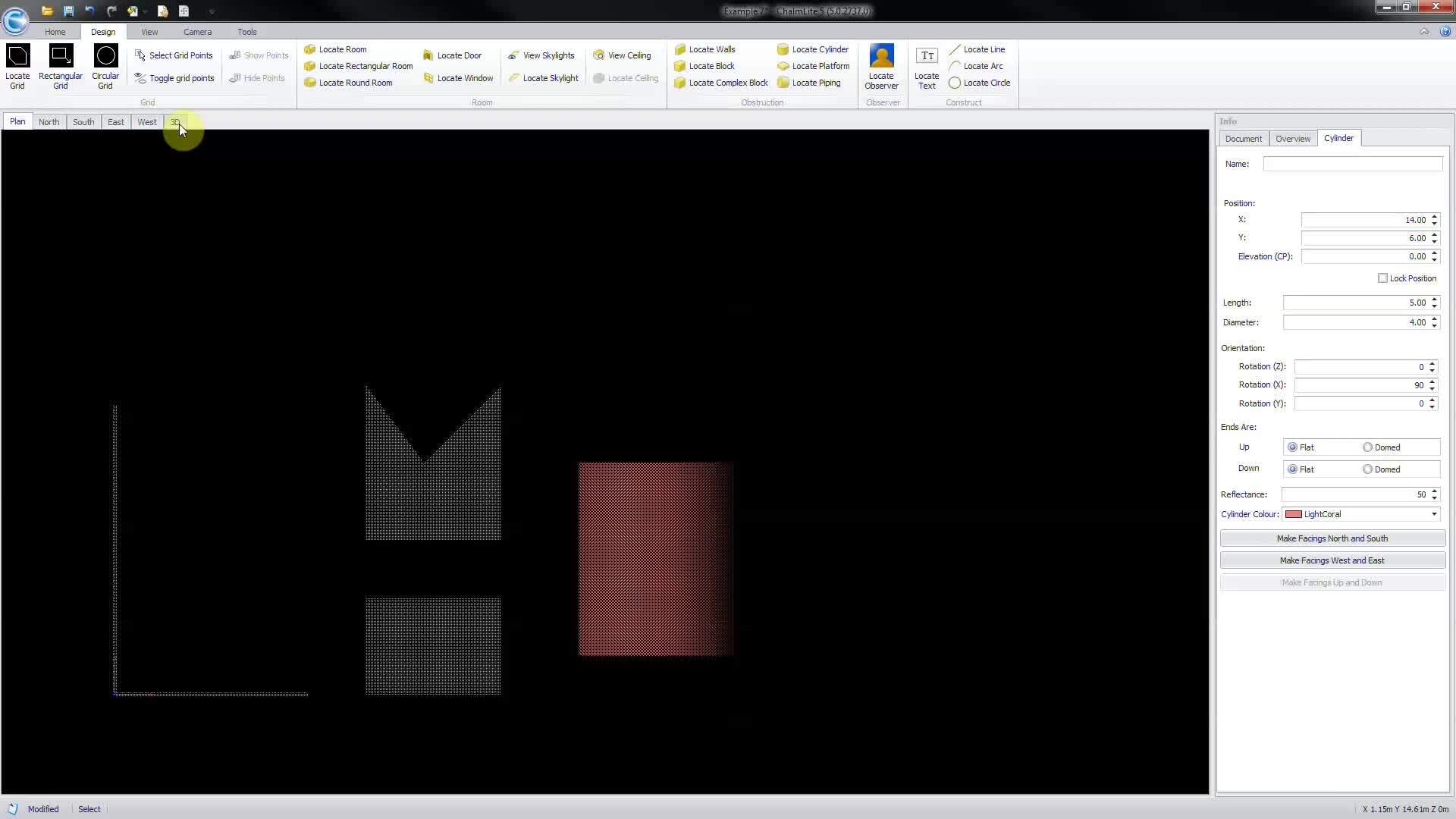
00:07Under the design ribbon, there are several obstruction types which can be located into the
00:12design space. Select locate walls to start drawing a poly
00:18line representing a wall.
00:21Consecutive clicks in the design space will add further wall vertices.
00:26Right click to complete to locate a block, insert a solid
00:32rectangular obstruction, picking two opposite corners of the rectangle.
00:41Select locate complex block to insert a non regular obstruction.
00:47Consecutive clicks in the design space will add further vertices to the complex shape.
00:52Right? Click to complete,
00:59select locate cylinder to insert a vertical cylinder, click for center and then
01:06again for radius.
01:08It is possible to make the cylinder horizontal by adjusting the rotation angle,
01:24select locate platform to insert an elevated regular obstruction,
01:30picking two opposite corners of a rectangle.
01:39Select locate piping to insert a poly line representing the root of pipes.
01:46Consecutive clicks in the design space will add further pipe vertices.
01:51Right? Click to finish.
02:01Please note that selecting a drawn obstruction allows you to edit its parameters such as size,
02:08position, mounting height and reflectance via the obstruction info panel.
02:15Refer to the help files for further information.
02:27It is also possible to lock the position of that obstruction in the design space and to
02:33change its color.