Transcript
00:01Devices has made it simple to install your wall switch or dimmer switch.
00:05In this video, we'll be installing a wall switch, but the wiring and set up process is
00:10exactly the same. If you're installing a dimmer switch in a few
00:14short steps, you'll transform your existing wall switch into a connected wall switch.
00:20Depending on your setup, you will need a Phillips head screwdriver and a flathead
00:24screwdriver. A voltage detector is required for identifying
00:29your existing wiring and needle nose or lineman pliers are helpful in straightening out old
00:34wires. Electrical tape is helpful to mark the line
00:38wire. If it's not already marked in the box,
00:42you will find the installation guide and a few wire nuts.
00:47Devices, switches fit any standard size rocker face plate.
00:51So you can select one that works best for your home.
00:56In this video, we will be installing wall switch in a single pole set up a single pole
01:02set up is when one light switch controls one set of lights.
01:06If you have multiple light switches, controlling one set of lights,
01:09you have a multi way set up and additional I devices, products may be needed
01:20I devices, products must be installed in a manner that conforms to all applicable national
01:26state and local building codes. If you are unclear at any point,
01:30please contact the I devices. Customer experience team,
01:39turn off the power at your breaker or fuse panel for the appropriate circuit of your home,
01:45turn the existing light switch on then off to confirm that the power has been turned off,
01:53remove the existing face plate, unscrew and pull the switch carefully out of the gang box.
02:02Make sure you have a neutral wire junction in the gang box.
02:06This is typically a bundle of white wires grouped together.
02:09If your gang box doesn't contain a neutral wire, your I devices product is not compatible at
02:15this gang box location, excluding the green or bare copper ground wires.
02:22If you have more than two wires connected to your switch,
02:25you may have a multi way set up which is not covered in this installation video.
02:31Take a photo of your existing wiring for future reference, disconnect the old
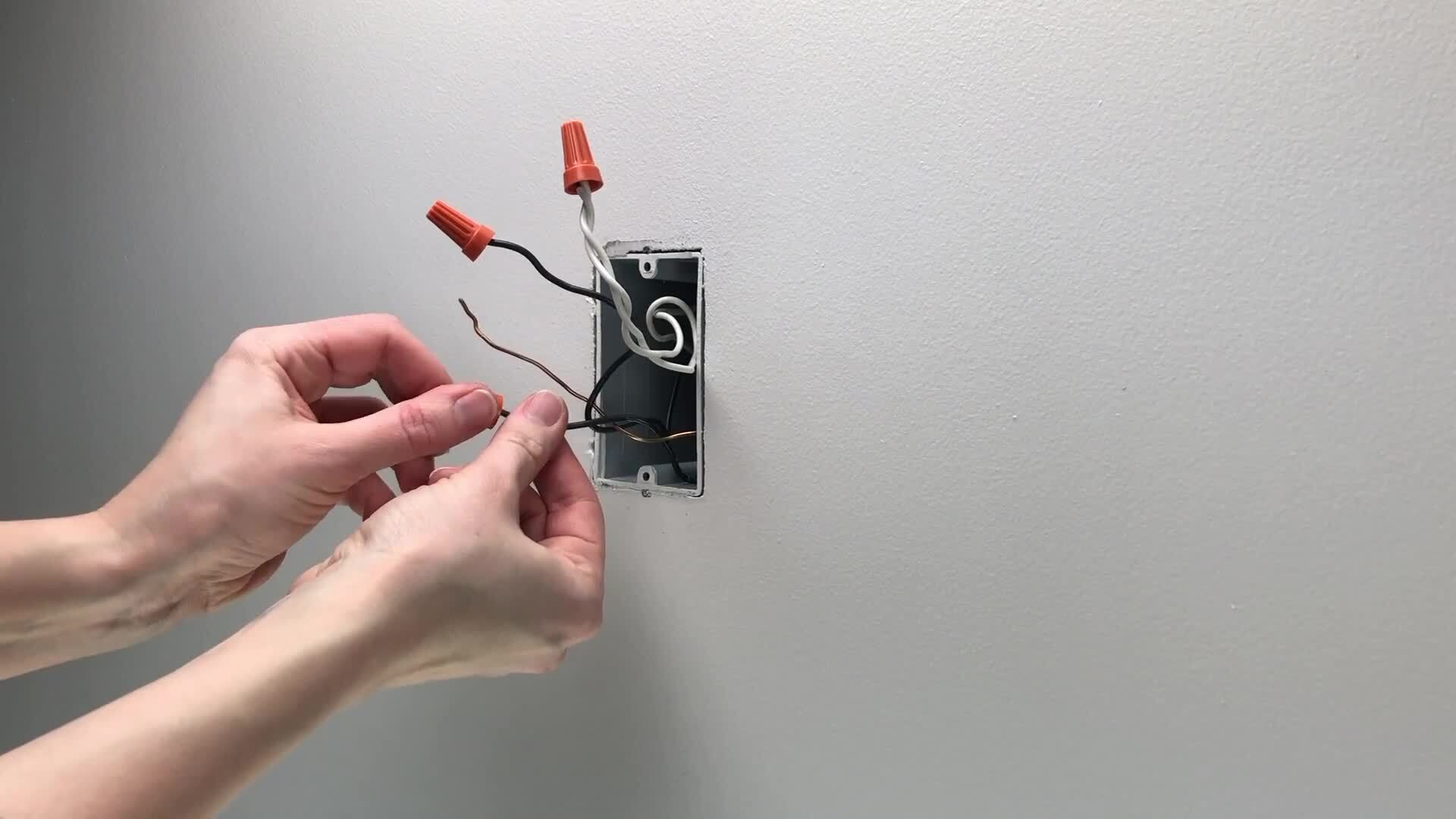
02:37switch and straighten out the wires cap the wires with wire
02:44nuts and turn the power back on at the breaker.
02:49Before we get into the installation process, we need to identify the wires.
02:55Neutral wires will usually be white and are often bundled together.
03:01The ground wire is usually bare copper or green to easily identify
03:07the load and line wires. Both usually black use a voltage detector.
03:14The energized wire is the line wire note this wire for reference and mark with tape.
03:20If it's helpful, the wire that is not
03:27energized is the load wire.
03:30Note this for future reference as well, turn the power back off at the
03:37breaker,
03:45connect the red load wire on the I devices product to the load wire you removed from the
03:50previous switch,
03:57connect the black line wire on the I devices product to the line wire you removed from the
04:03old switch. This was the energized wire you noted
04:06previously, remove the
04:13wire nut from the white neutral wire bundle in the gang box and attach to the white neutral
04:19wire on your I devices product.
04:27Finally connect the bare copper ground wire on the I devices product to the ground wires in
04:33the gang box. Ensure the wire
04:40caps are securely fastened and carefully push the wires into the gang box,
04:45taking care not to pinch any wires, screw the switch into the gang box,
04:52install the face plate. You've chosen turn the power back on at the
04:58breaker and confirm that the led on your I devices.
05:01Product lights up purple. Congratulations. Your I devices product is now
05:08installed. Refer to the installation and setup guide to
05:12connect the I devices product to your Wi Fi network.
05:17If you want to learn more about I devices products or need additional help.
05:22Head over to I devices. Inc.com/support.

iDevices Install Guide Single-Pole Setup Of The iDevices Wall Switch & Dimmer Switch
- private
- electrical contractor
- electricalcontractor