Transcript
00:01I devices, socket has been designed to make it simple and quick to get set up.
00:07In just a few steps, you'll transform your light into a connected light in the box.
00:12You will find the I devices socket, quickstart guide, which will help you get connected.
00:17The quick start guide includes the eight digit home kit code which you will need later in the
00:22set up process.
00:23This home kit code is also on the back of socket sockets,
00:27color light ring will indicate different statuses and once set up can be used as a
00:32nightlight to create dynamic low light environments.
00:35Sockets side button allows you to turn the light on and off manually.
00:39You're now ready to install socket into the desired light,
00:43turn off the light and once cool, remove the current bulb,
00:51then screw socket into the light socket.
00:53If you're having trouble removing the harp may make it easier.
00:57Once socket is in place, you can screw in any standard light bulb if using an led or CFL bulb.
01:03And you want to use sockets, dimming ability, make sure the bulb is dimmable.
01:07Most bulbs will say this on the packaging or on the base of the bulb socket fits most lamps.
01:13But if you run into an issue with height, you can consider using a compact led bulb or using
01:19a larger sized harp with socket and the bulb in place.
01:23Turn the light back on.
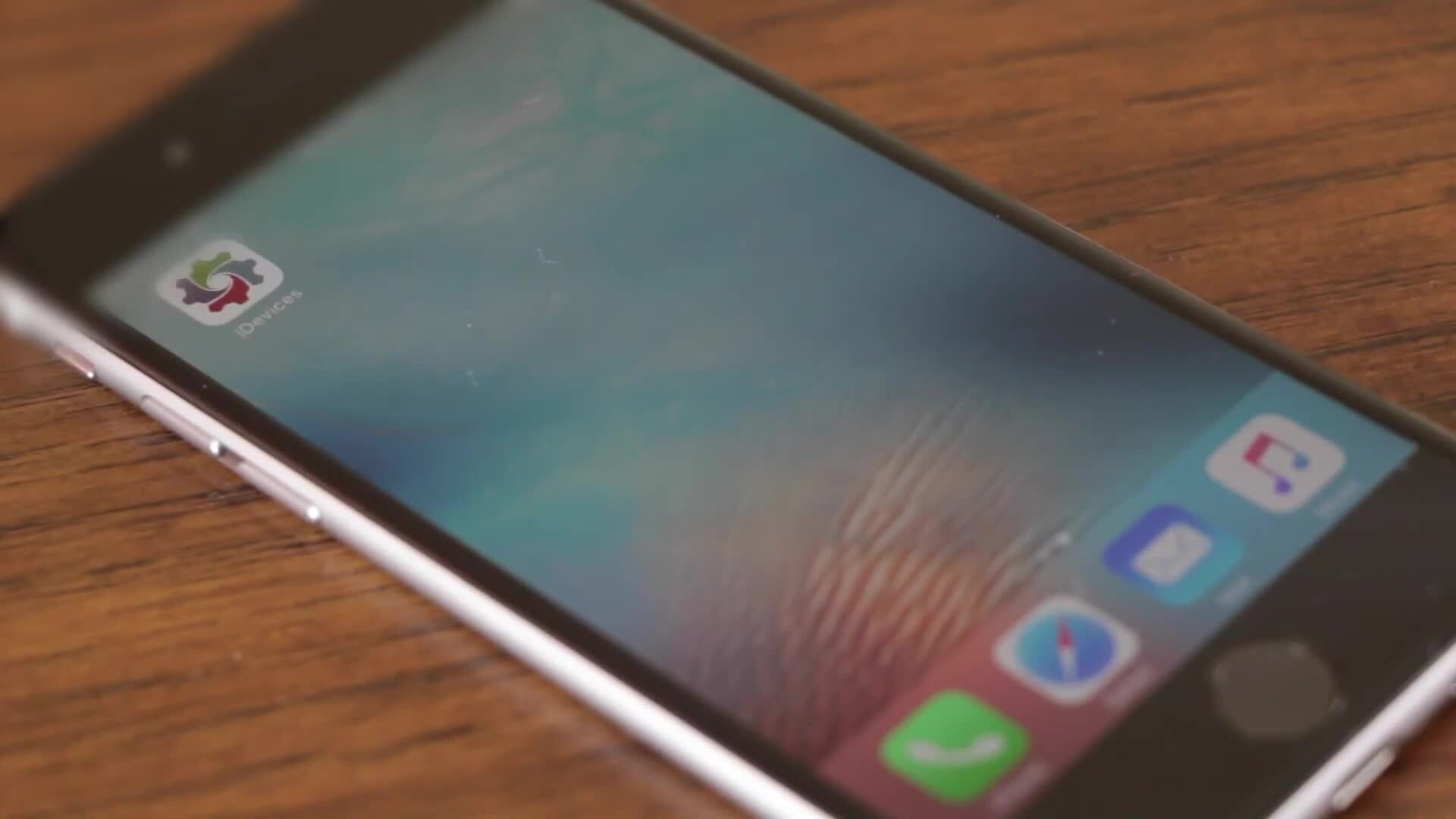
01:24If this is your first I devices connected home product, you'll need to download the free I
01:29devices connected app from the Apple App store, ensure that your IOS device is joined to your
01:35home Wi Fi network. Now launch the I devices connected app.
01:39The new I devices socket will pop up at the top of the screen as an available product to
01:44connect to tapping on socket will start connecting it to your Wi Fi network tap.
01:48Next to continue. Once socket joins your Wi Fi network,
01:52the le will quickly blink green and then stay solid blue tap done to continue socket will now
01:58connect through Apple's home kit protocol socket will quickly flash purple to identify
02:04itself tap. Yes. On the pop up message to confirm you are
02:07connecting the right product. If this is your first home kit product,
02:11you will be prompted to set up your home kit home.
02:13The I devices connected app will walk you through creating and customizing your home and
02:18your first room. You'll now need to enter the home kit code from
02:22the quickstart guide to finalize the connection. If your IOS device is running IOS nine or later,
02:28your camera will turn on and you will be prompted to scan the code.
02:32Once the home kit code is entered, you will be prompted to rename the accessory.
02:36This is your chance to give socket a unique name which will help you identify it within the
02:41app. And when using Siri next, you will be asked to
02:44register your I devices. Socket registration is encouraged as it will
02:48help us track your warranty and keep you informed about socket updates.
02:52Congratulations. Your socket is now set up.
02:55Make sure the light remains in the on position while using socket.
02:59If you want to learn more about I devices socket or need additional help.
03:03Head over to I devices. Inc.com/support.

iDevices How-To iDevices Socket - Getting Started
- private